Synthscape
A downloadable game
Description
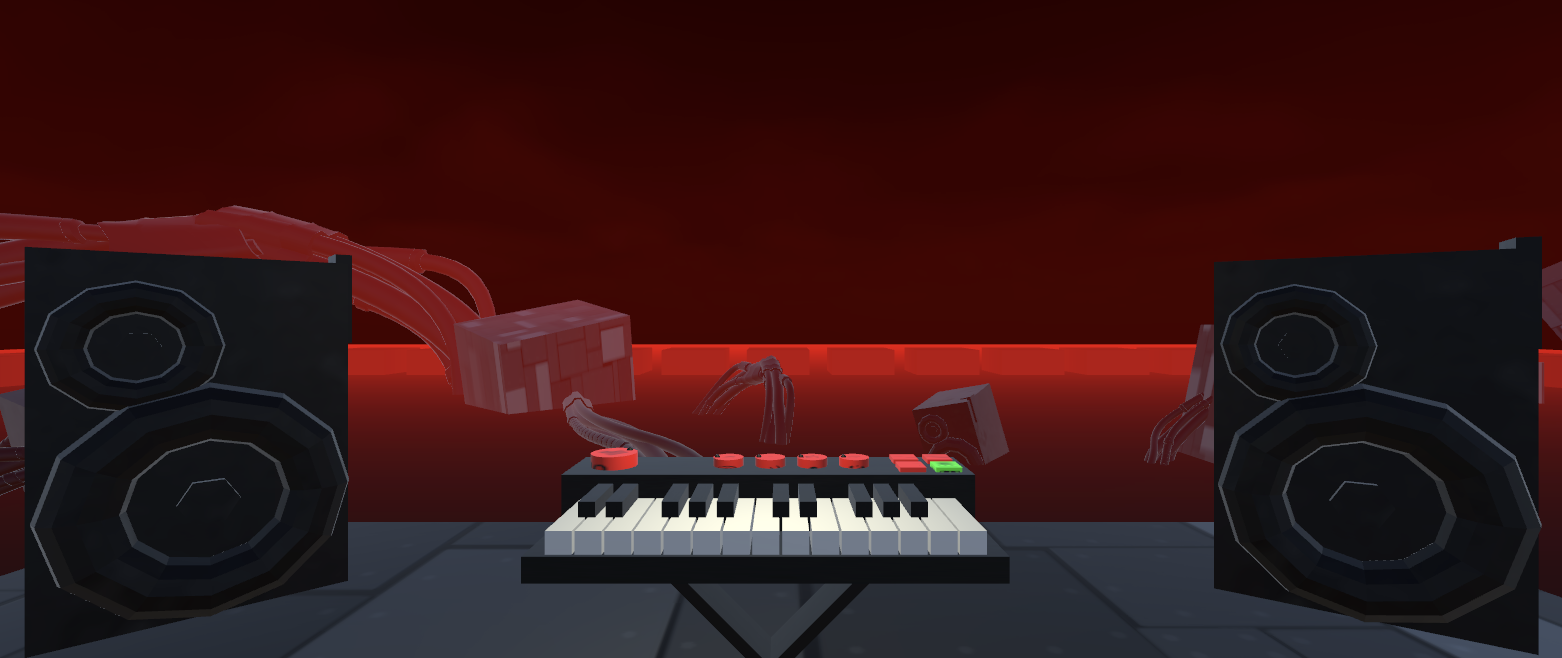
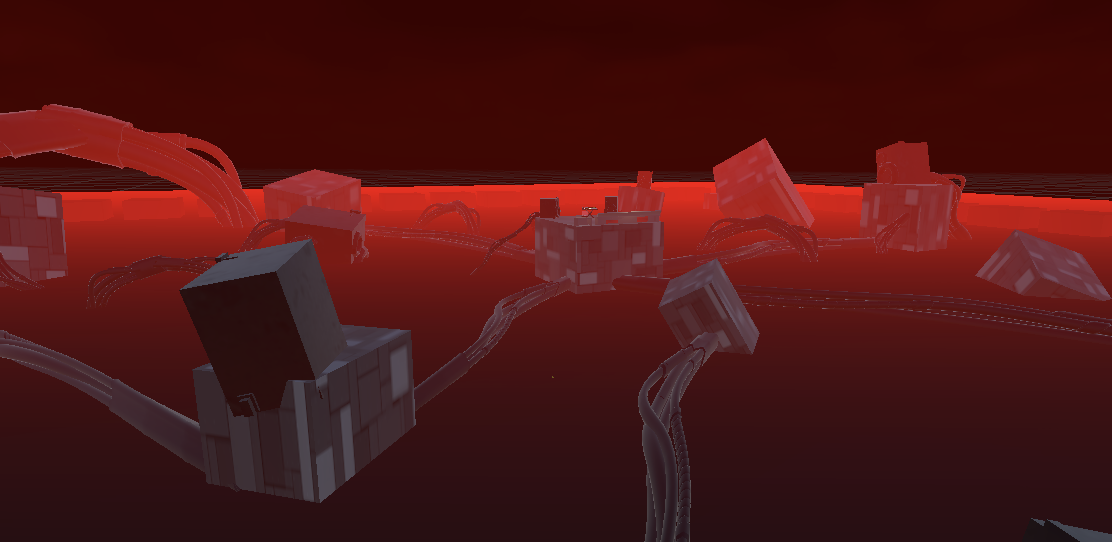
In this game, you are met with a synthesizer, a record player, and some vinyl. Using such equipment, you are given the freedom to explore and experiment with sound and music. Additionally, the environment that surrounds you returns visual feedback to the sound you create, fully immersing yourself in both a visual and sonic experience led by your creativity and expression.
Control Instructions
Teleport
- Aim teleport (push right controller’s thumbstick forward)
- Teleport (release right controller’s thumbstick)
Continuous Move
- Left controller’s thumbstick
Grab Vinyl / Knob
- “Grip” button on handle of controllers (press and hold)
- Release the “Grip” buttons to release the grab
- If grabbing a knob, move your controller in a circular motion to twist the knob.
Play Synth Key
- Use the motion controls of the hand controllers to press down the synth keys.
- Alternatively, you can press the “grip” buttons on the handle of the controllers to play notes by selecting the keys from afar. This may prove easier to play notes in quicker succession.
Using Record Player
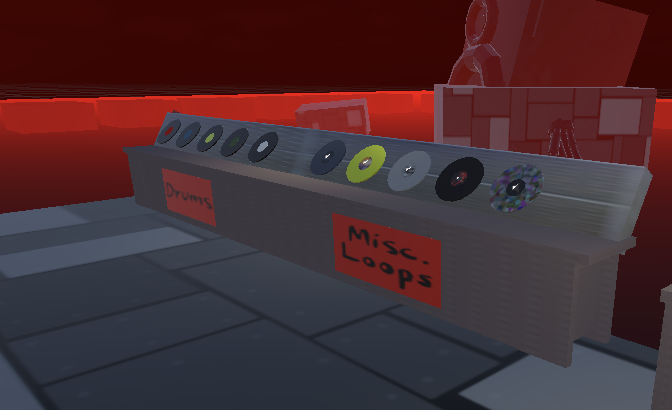
- To provide a backing-track loop while you play, you can use the grab controls to grab a Vinyl and place it on the record player. Once placed on the record player, it will play a unique loop. Removing the vinyl from the record player will stop the playback of the loop.
- There are a variety of vinyl records available to explore, from solo drum loops to more involved instrumental loops.
Synth Feature Descriptions
Preset Buttons (Far right side of synth)
- There are four preset buttons you can press to switch the preset sound for the entire synth. From top to bottom, left to right, there is the Sine, Square, Saw, and Piano presets to choose from!
Master Volume Knob (Far left side of synth)
- The master volume knob (dB for decibels) can be twisted to adjust the master volume of the synth. It is worth noting that this master volume doesn’t apply to all sounds, such as that from vinyl loops, but just that from the synth.
Reverb Knob (Left most of center four knobs)
- Can be used to adjust the reverb effect’s dry/wet signal.
Delay Knob (Left-middle of center four knobs)
- Can be used to adjust the delay/echo effect’s dry/wet signal.
- Note the delay effect is set in place to be in time with the vinyl loops and cannot be changed using this knob. This knob only affects the dry/wet signal of the effect.
Chorus Knob (Right-middle of center four knobs)
- Can be used to adjust the chorus effect’s dry/wet signal.
Distortion Knob (Right most of center four knobs)
- Can be used to adjust the distortion effect’s dry/wet signal.
Model Attribution:
red cable 4 by Jeremy Eyring [CC-BY] via Poly Pizza
Living Room by Alex Safayan [CC-BY] via Poly Pizza
Download
Install instructions
Installation (Meta Quest 2 VR Headset - Using SideQuest Application)
- Download the apk file to your computer.
- Use the SideQuest application to install the apk file to the VR headset (the small install icon near the top of the application).
- In the Meta Quest lobby view, locate the ‘applications’ list on the right side of the menu.
- Locate and click the unknown sources icon on the left side of the applications view. Here you should see the installed apk file.
- Select the file and run it!
Leave a comment
Log in with itch.io to leave a comment.